
MoveMate
A moving-assistant app designed to reduce stress with a checklist and curated service recommendations. My role included UX research, wireframing, prototyping, usability testing, and final UI design.
Role: End-to-end UX/UI Designer
Duration:
Tools: Figma, Miro
Problem
Research Goal
Moving to a new place can be overwhelming, stressful, and time-consuming. People often feel rushed, unsure of where to begin, and it can get very expensive as well.
To simplify and organize the moving process by helping users manage tasks, book services (like movers, cleaners, and storage), and stay on track with a checklist — making moving less stressful, less time-consuming, and more affordable.
Listening Before Solving
I aimed to understand how people manage the moving process, what challenges and emotions they face along the way, and what features could help them stay organized and in control. The goal was to uncover insights that would guide the design of a tool that simplifies moving and reduces stress from start to finish.
This plan included:
Secondary Research.
User interviews.
Here are some themes I explored and insights I gained in the secondary research:
Consumers are looking for flexible-time saving services that fit into their busy lives.
Moving is usually associated with high costs.
They experienced lack of transparency in prices from moving services.
Stress and emotional distress are also one of the challenges they experience with moving.
I recruited 4 participants who have had recently moved. The goal was to learn about their emotions, struggles, and current strategies during the moving process.
The most common challenges were time management and looking for affordable options.
They all planned with time ahead the packing and the move logistics.
Most of them had a support system like family and friends helping them out with the move and packing.
After analyzing my interview findings, I created two user personas to represent the main types of people preparing for a move. These personas helped me stay focused on real user needs and emotional pain points throughout the design process.
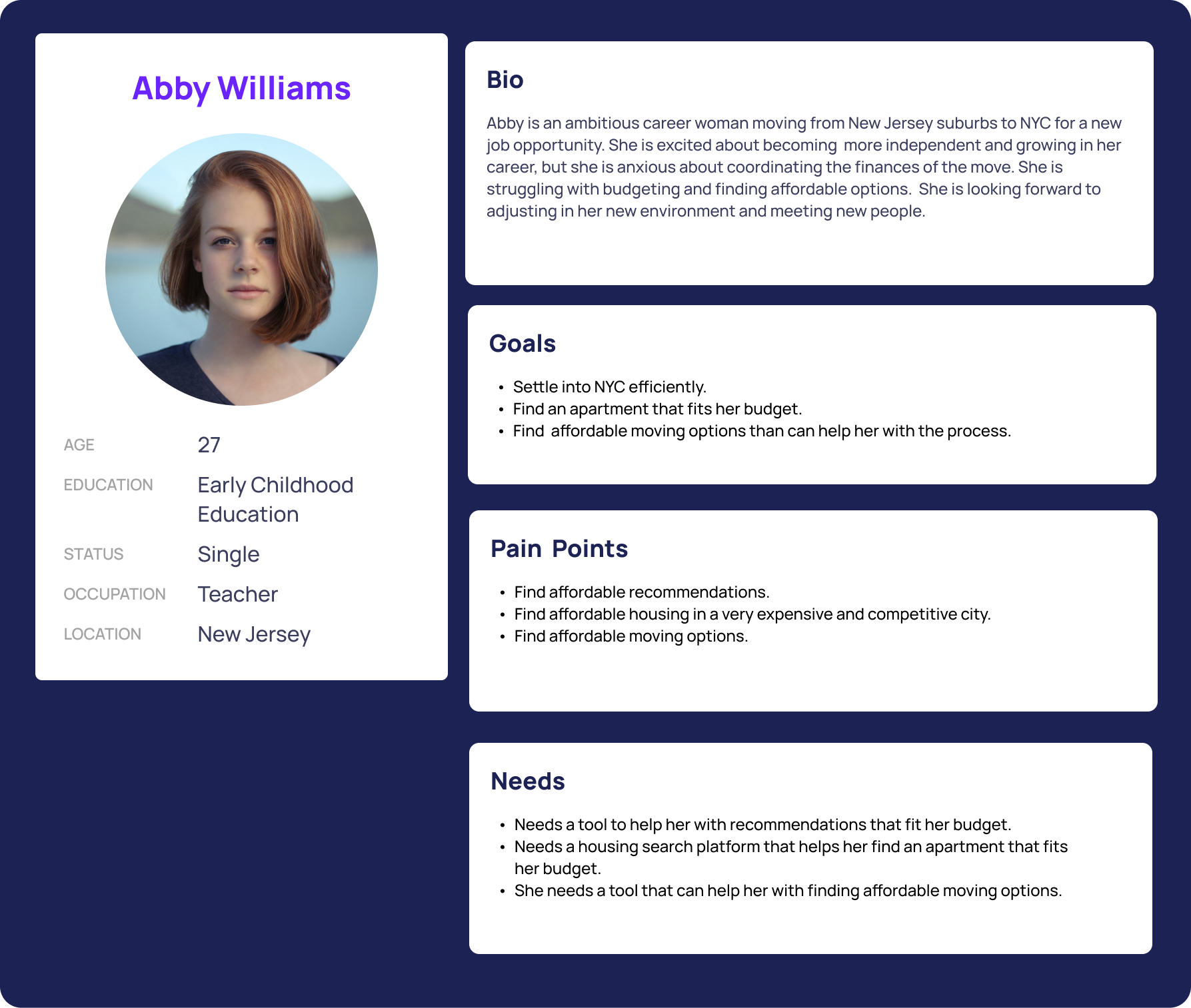
This is Abby, she represents the
type of user who is struggling
with budgeting and needs a tool
with recommendations that fit her
budget.

Elliot represents the type of user who
is struggling with time management
and needs a checklist to help him
organize himself better on daily basis.
To improve the organization of MoveMate’s content and ensure that the app’s structure matched users’ expectations, I conducted a closed card sorting activity with 4 participants.
Participants were given a predefined set of categories such as Checklist, Home and Moving Services and asked to sort various moving-related tasks into the categories they felt made the most sense.
Users consistently grouped Welcome Message, User Registration, and Sign In here, expecting these features to be easily accessible when opening the app.
Moving Services, Moving (To and From), and Moving Progress were always grouped together, highlighting that users see these as part of the logistics of moving.
Mark as Complete, Add Task, and Manage Task were strongly associated with the checklist, confirming that users view it as the main space for task management.
User Flow
After defining the main features and understanding user needs, I created a user flow to visualize how users would navigate through MoveMate to complete key tasks — such as signing up, creating a checklist, and booking moving services.
The goal of this flow was to ensure a smooth, intuitive journey that minimized friction and guided users through the moving process step by step. It helped me identify decision points, key screens, and potential bottlenecks before moving into wireframing.

Task Flow
Once the overall user journey was defined, I created a task flow to break down specific actions users would take to accomplish key goals within the app. In MoveMate, this included flows like signing up, creating a personalized checklist, and booking a moving company.

Why I chose this?
The goal was to make the process of booking a moving company as simple and transparent as possible.
Moving is stressful, so I prioritized clarity: each step reduces uncertainty, showing the user exactly where they are in the process.
I wanted to balance guidance + control: users can browse services, compare companies, and then confirm their choice through direct interaction (the call).
This flow reflects how users naturally think: browse → evaluate → contact → confirm → track.
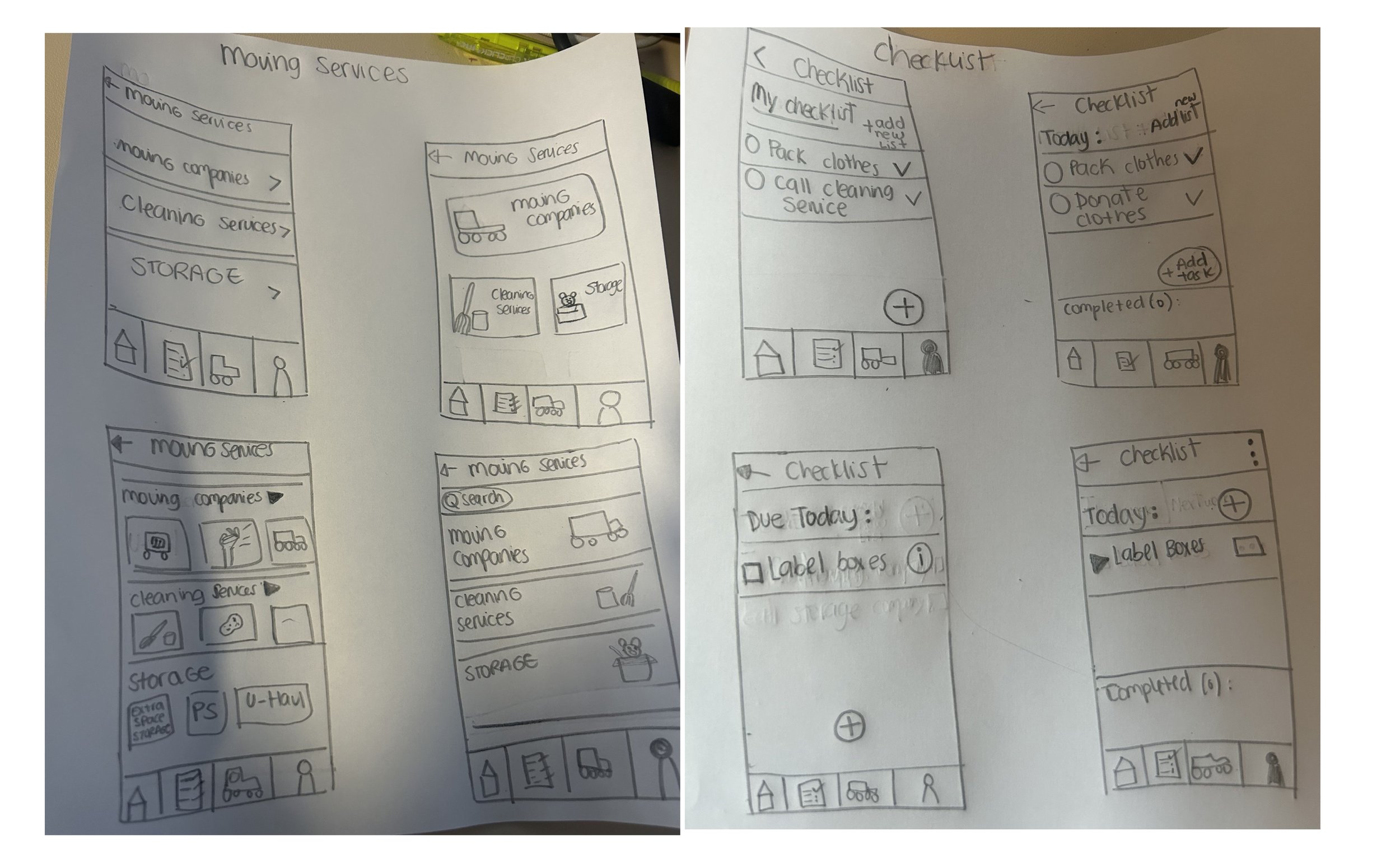
After defining the user flows and task flows, I moved into creating low-fidelity wireframes to visualize the app’s structure and layout.
At this stage, my focus was on functionality, hierarchy, and usability — not aesthetics. I sketched and built simple wireframes by hand to explore different layouts for key features like the checklist, hoemmoving service selection.
Mid Fidelity
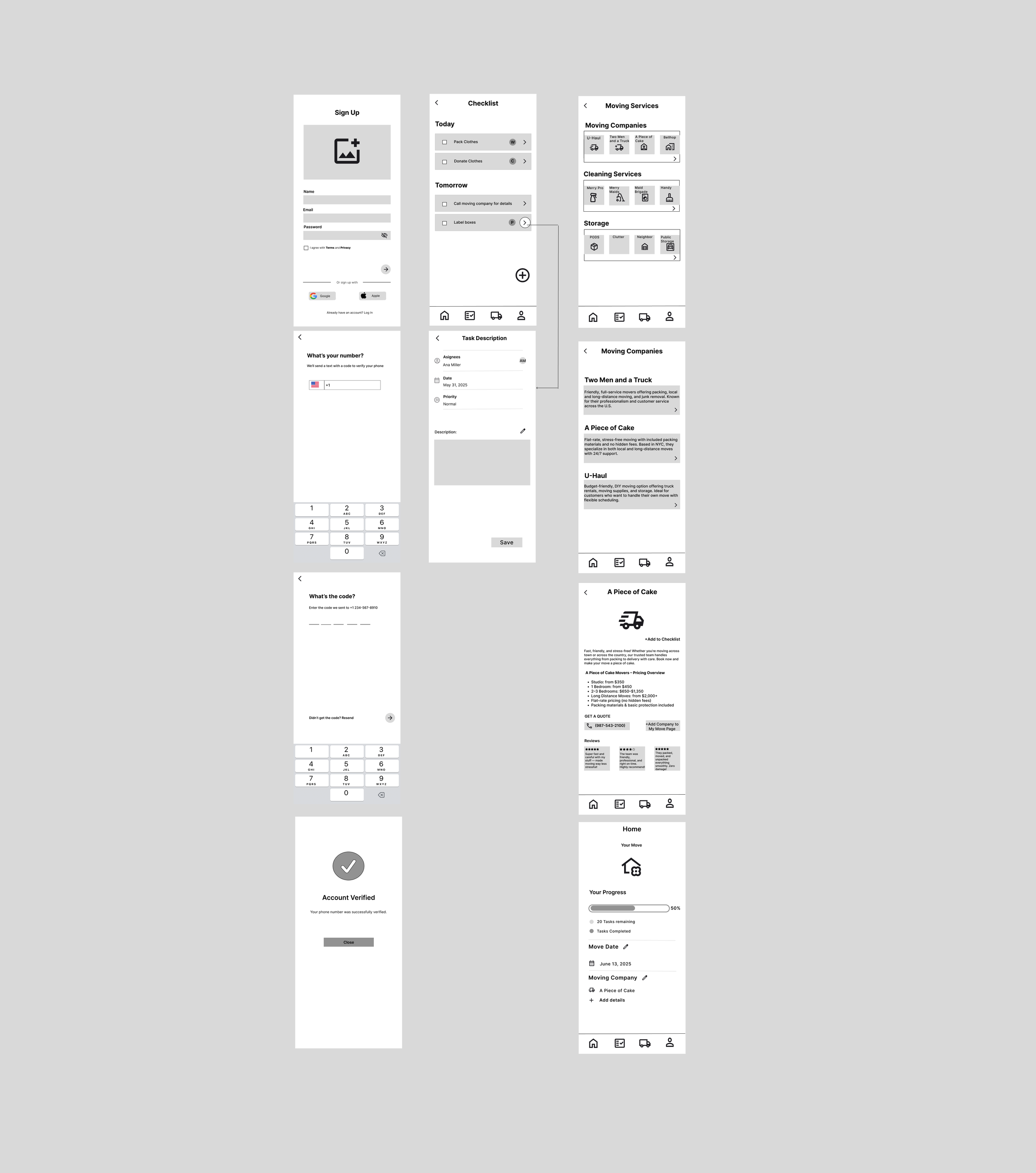
After testing initial ideas through low-fidelity sketches, I moved into mid-fidelity wireframes to refine the structure, layout, and interactions of the main user flows.
High Fidelity
Checklist
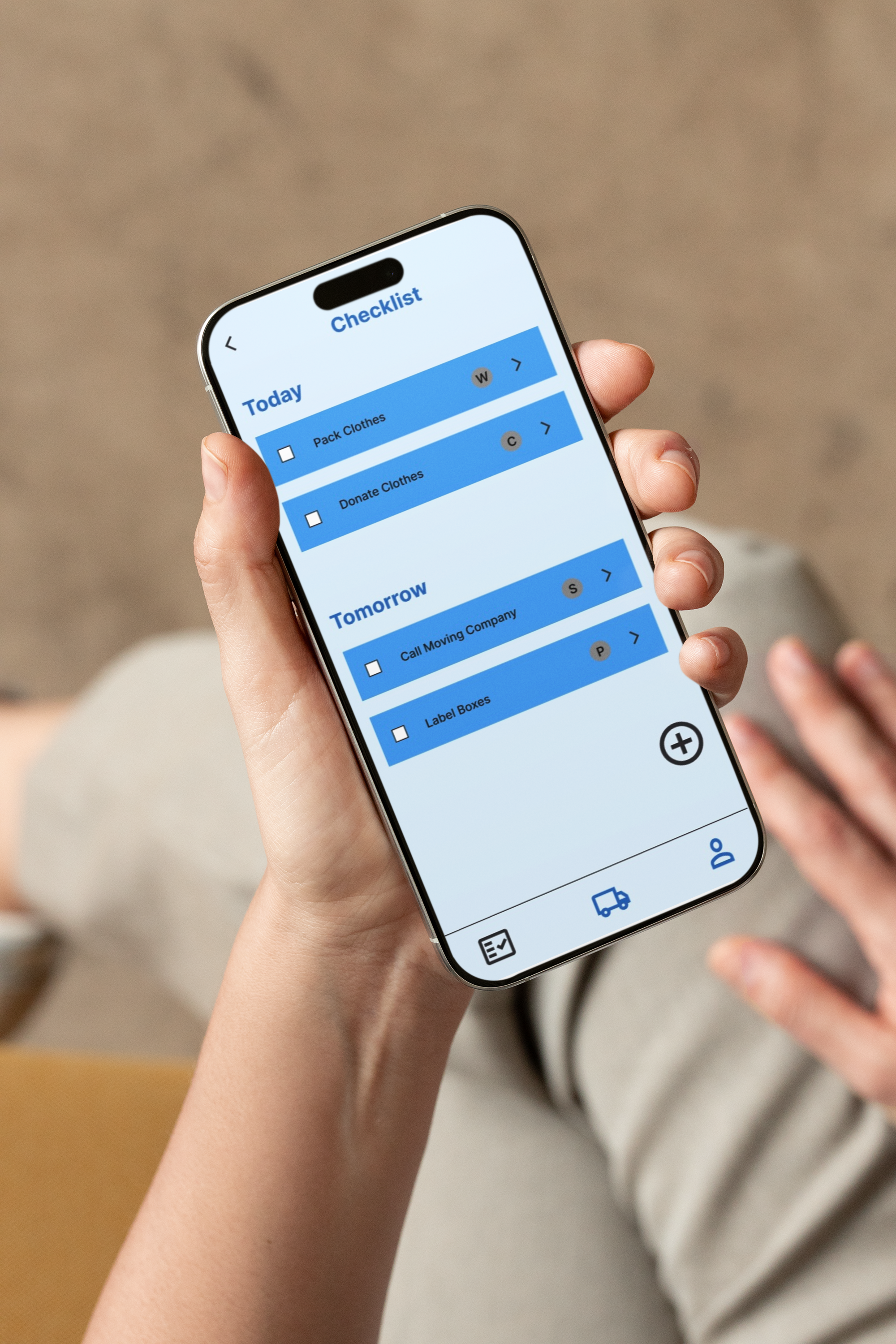
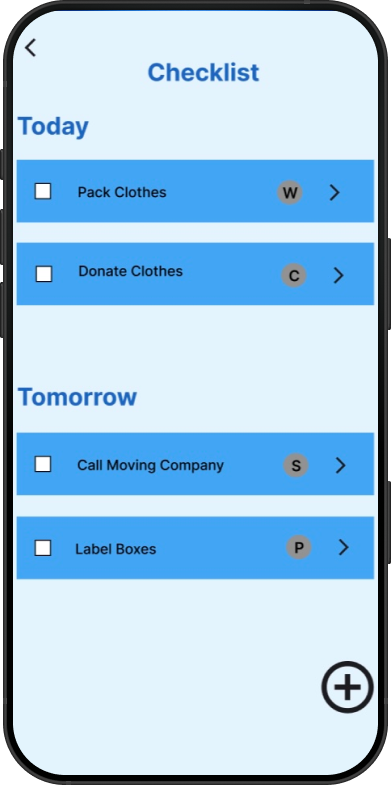
The Checklist screen serves as the home of the app — the first place users land to stay on top of their moving tasks. It provides a clear overview of what needs to be done before the move, helping users feel organized and in control.
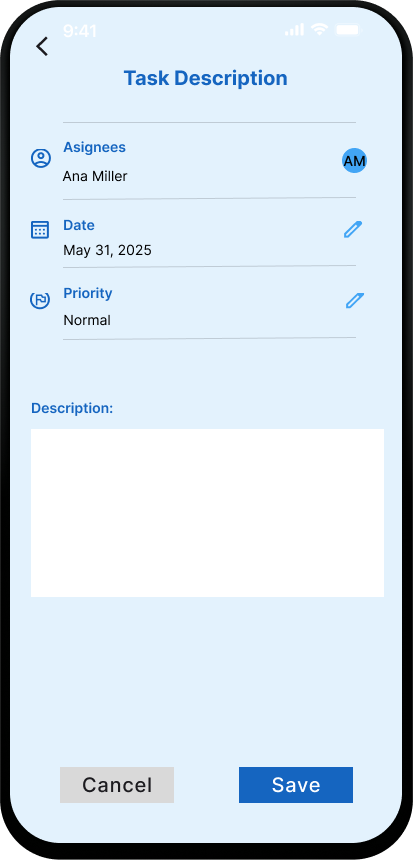
When a user selects a task, they’re taken to the Edit Task screen, where they can update details such as due dates, notes, or status. This flow was designed to feel intuitive and lightweight — minimizing friction and allowing users to quickly make updates without losing momentum.
Moving Services Page
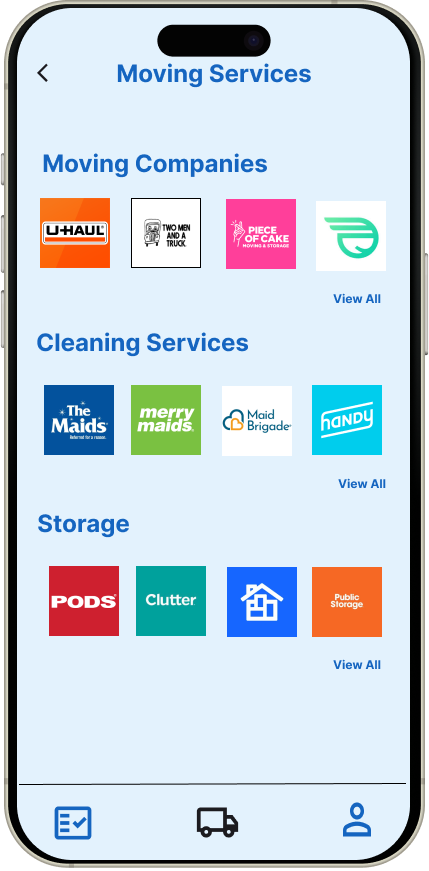
This screen introduces users to MoveMate’s service marketplace — a central hub where they can browse trusted moving-related services. It simplifies the search by keeping all essential categories in one place.
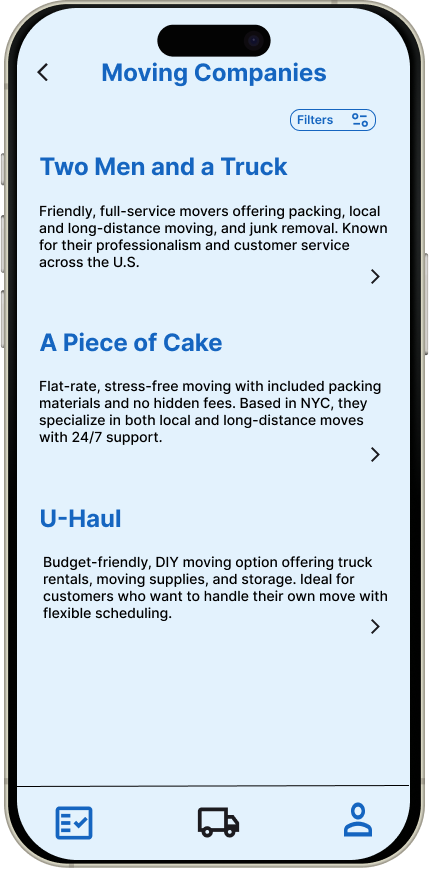
After selecting Moving Companies, users are shown a list of local providers.
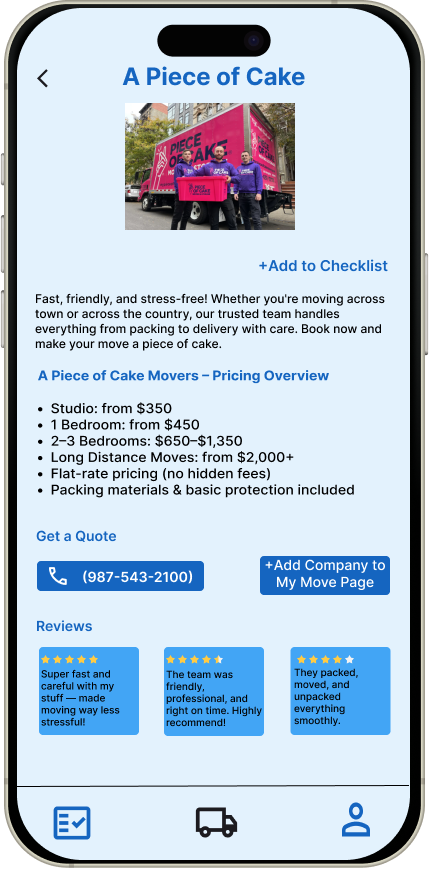
Tapping on a company opens a detailed view with expanded information, including a service description, contact details, estimated prices, and a “Call” button for immediate communication. Users can also “Add to My Move Page” directly from this screen, streamlining the planning process.
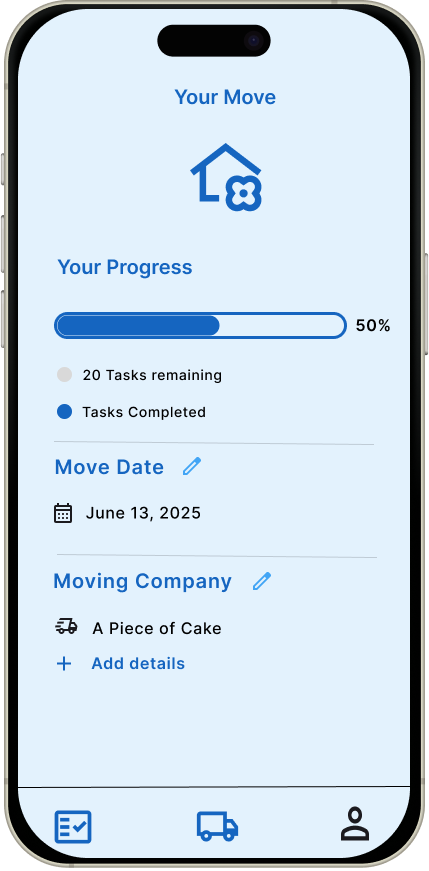
Once a company is added, it appears on the user’s personalized My Move Page — a dashboard summarizing all confirmed services, upcoming move details and their progress. This creates a sense of organization and control, ensuring nothing gets forgotten.
Sign Up/Log In Screen
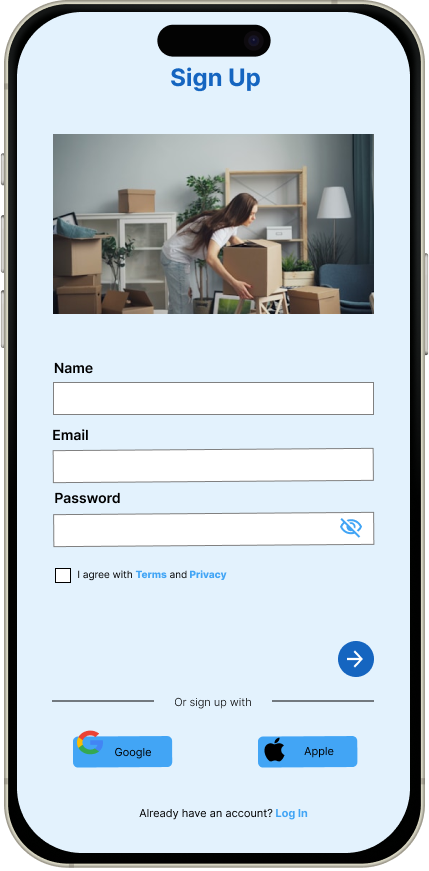
Users are first presented with the option to either create a new account or log in if they already have one. To simplify the process, they can also use Google or Apple to sign in with one tap — eliminating the need to remember another password and ensuring a frictionless experience.
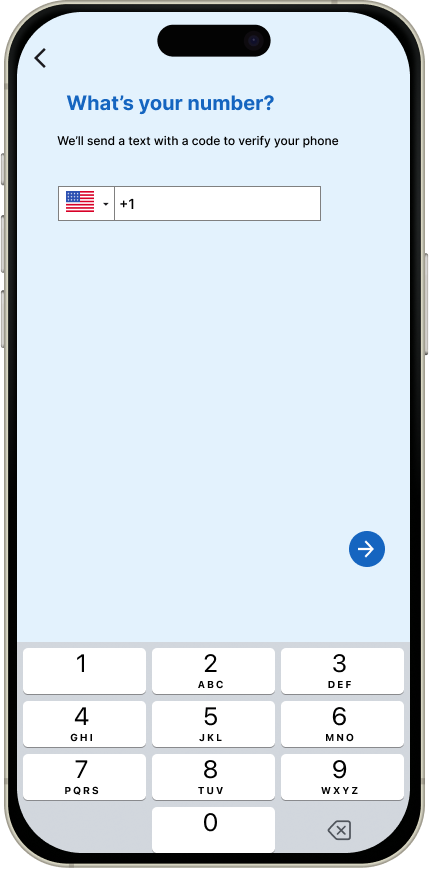
Next, users are prompted to enter their phone number. This step adds an extra layer of security.
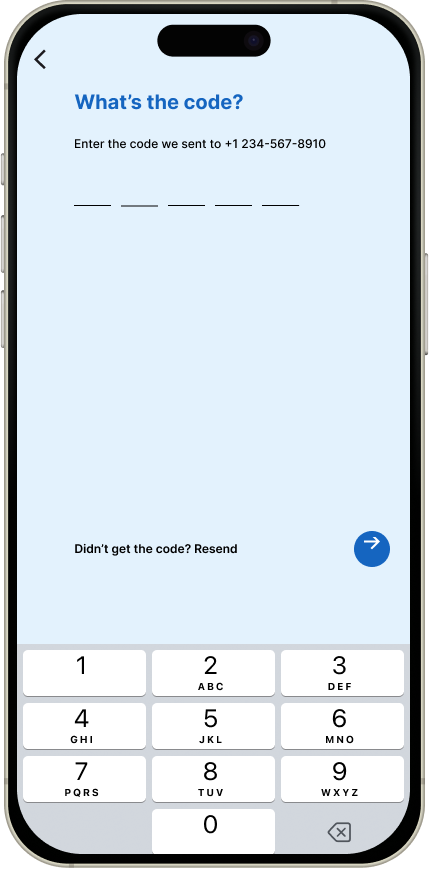
After submitting their number, users receive a verification code via SMS. They enter this code to confirm their identity and ensure secure access to their account.
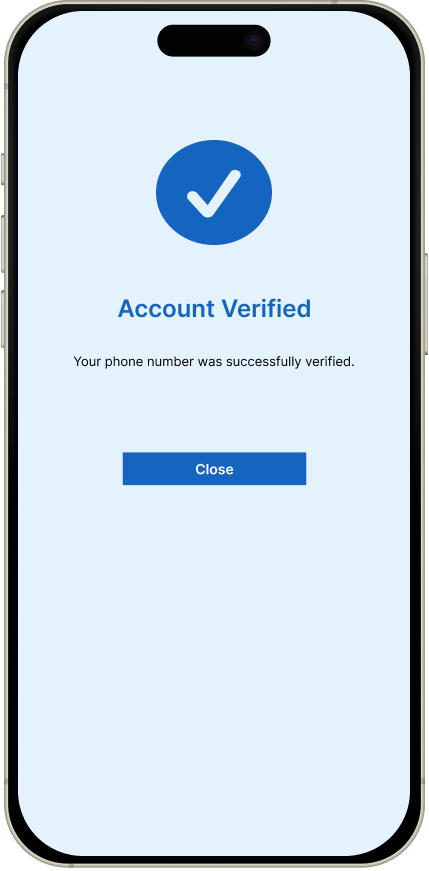
Once the code is confirmed, a success screen appears to notify users that their account has been verified.
Usability Tests Results
I conducted usability testing with five participants to evaluate the MoveMate prototype.
The goal was to observe how easily users could complete key tasks such as signing up, browsing services, using the homepage, and managing tasks.
Findings
The app was viewed as practical, user-friendly, and a strong tool to stay organized during a move.
Several highlighted the My Move Page and Checklist as standout features.
Some felt the app was very similar to existing productivity tools and could benefit from unique features to set it apart.
A couple of participants suggested improvements such as adding filters (e.g., by price) or more detailed information.
Conclusion
The usability testing revealed that MoveMate already provides a strong, user-friendly foundation.
Participants felt comfortable navigating the app and completing core tasks, with the checklist and homepage earning the most praise.
Improvements in interactivity, onboarding flow, and service browsing filters could enhance the overall experience and make the product stand out further.
Iteration
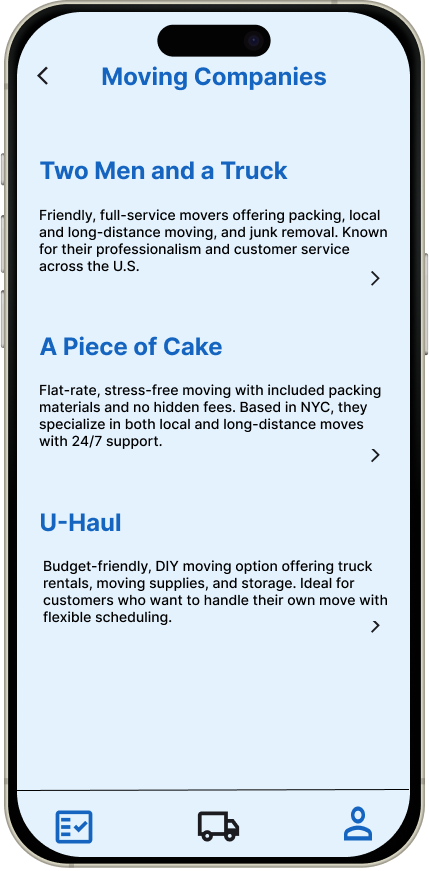
During testing, users expressed that it was difficult to browse through all the available moving services efficiently. They wanted a quicker way to narrow down their options without scrolling through every category.
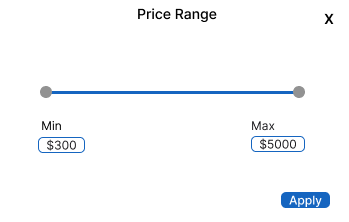
In response to this insight, I added a filter button to the moving services page. This small but impactful change allowed users to sort services by category, price, or location, making the browsing experience more efficient and personalized.
Before
After
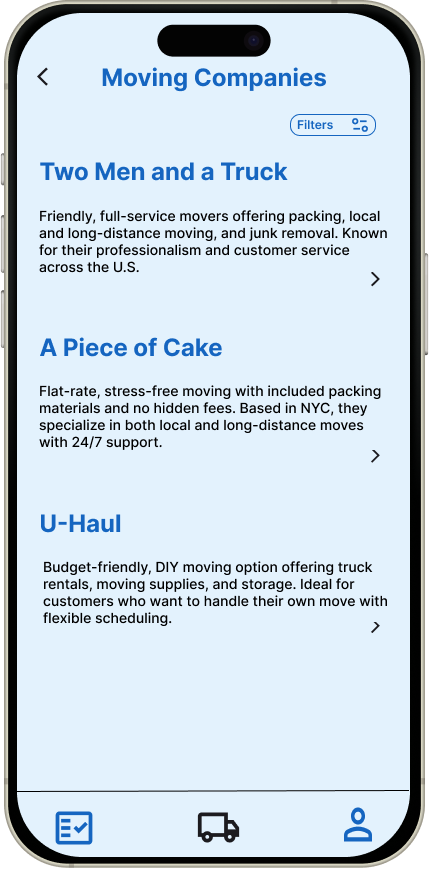
When users tap the filter icon, a pop-up panel appears displaying filter options such as price range.
If I had more time…
If I had more time to continue developing MoveMate, I would focus on:
Expanding personalization features — adding reminders, and AI-based task suggestions to make the experience even more tailored to each user.
Conducting further usability testing — with a larger and more diverse group of users to refine key flows and validate design decisions.
Enhancing the visual design system — refining color contrast, spacing, and iconography for improved accessibility and visual consistency.
Key Learnings
Learned how to turn user feedback into actionable design improvements, like adding a filter for easier navigation.
Strengthened my ability to connect empathy with structure throughout the design process.
Gained confidence in usability testing and visual storytelling.
Discovered that small design changes can make a big difference in reducing user stress and improving experience.